A faster site in one evening: 9 steps with a before and after measurement

Ready pages, compression, the styles a page needs, images, the schedule and OPcache: every step has three lines: what to do, how to check it with a number or a command and what happens if you skip it. With a measurement before and after.
A visitor does not wait: if a page opens slowly, they leave, and search engines take speed into account. The good news is that on most small sites the same things slow the page down, and you can fix them in one evening without changing the theme or the hosting. Below are nine steps. Each has three lines: what to do, how to check (a screen, a command or a number) and what happens if you skip it. We start and finish with a measurement so that you can see what helped.
The steps are independent, take any of them. One warning right away: the numbers below come from our own test stand, not from your site. Yours will differ, the direction is what matters.
Your panel: “What to improve” and “System health” #
Open “Site management → SEO & accessibility → What to improve” and choose the “Speed” tab: it lists what is not turned on yet on your site. And in “System → Diagnostics → System health” there is a “Recommendations” block at the bottom: it prompts about the cache, the schedule and OPcache.Step 1. Measure first #
What to do. Open PageSpeed Insights, paste the address of your home page and run the check for a phone. Or in the Chrome browser: developer tools, the Lighthouse tab, “Analyze page load”. Write down three numbers: LCP (when the main part of the page appeared), CLS (how much the page “jumps”) and INP (how fast the site responds to a tap). The targets according to web.dev: LCP no more than 2.5 seconds, INP no more than 200 milliseconds, CLS no more than 0.1, and this for three visitors out of four (the 75th percentile). How to check. You have three written numbers and the date of the measurement. If you skip it. You will not know whether the changes helped. Remember two more things. The Lighthouse result varies from run to run: run it three times and take the middle one. And a score of 100 is not the goal: the Chrome documentation says it is extremely hard to reach and not expected, and the green zone starts at 90.Step 2. Ready pages for guests #
What to do. In “Site settings → Speed and upkeep” turn on “Serve ready pages to guests”. A page built for one guest is served to the rest as is, with no database work. Signed-in people get their own pages as usual, and the cache clears itself on any change made in the panel. You can leave “How many seconds to keep” alone: five minutes (300) is enough. How to check. Request the home page twice:curl -I https://example.com/
curl -I https://example.com/X-Nex1on-Cache: hit. On our test stand a page built anew was served in 0.6–0.8 seconds, and a ready one in 0.12–0.17.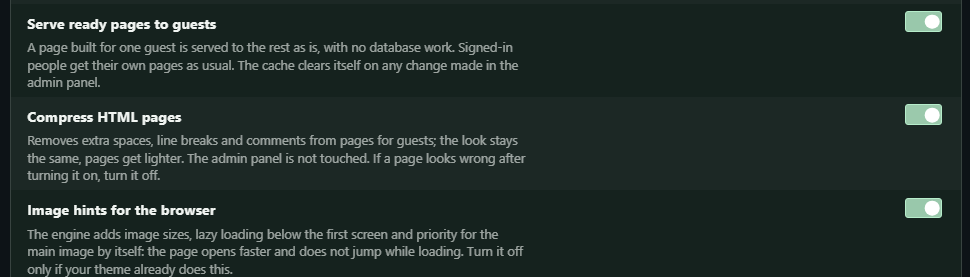
If you skip it. Every guest makes the server build the page from the database again. On a busy site this takes most of the work off the server.
Step 3. Compress the HTML #
What to do. In the same place turn on “Compress HTML pages”: extra spaces, line breaks and comments leave the pages. The look does not change, the admin panel is not touched. If a page looks wrong after turning it on, turn it off. How to check. Compare the size of the answer before and after:curl -s https://example.com/ | wc -cStep 4. Only the styles a page needs #
What to do. Turn on “Only the styles a page needs”: instead of several full stylesheets the page gets one, with just the rules that can apply to it. The look does not change. How to check. Open the page source (Ctrl+U) and findrel="stylesheet". On our test stand three stylesheets (about 634 KB uncompressed) were replaced by one (157 KB).
If you skip it. The phone downloads rules for pages it has not opened: the home page opens noticeably slower, especially on a mobile network.Step 5. Images #
What to do. In “Site settings → Images and video” check three things. First: “Largest image width, px” is 0 by default, which means no limit. Set the number you really need (for example, 2000): large pictures are scaled down on upload with the same proportions. A photo six thousand points wide is too much for a column a thousand wide. Second: “Image compression”: by default it is “Locally”, and nothing leaves the site; the external TinyPNG service returns lighter files, but your picture is then sent to someone else's server. Third: turn on “Pictures in WebP too”: the site also keeps a lighter copy and serves it to the browsers that ask for it. Copies are made only for new uploads; for pictures already uploaded run the commandphp nex1on media:webp on the server. Leave “Image hints for the browser” on: the engine adds sizes, lazy loading below the first screen and priority for the main picture by itself.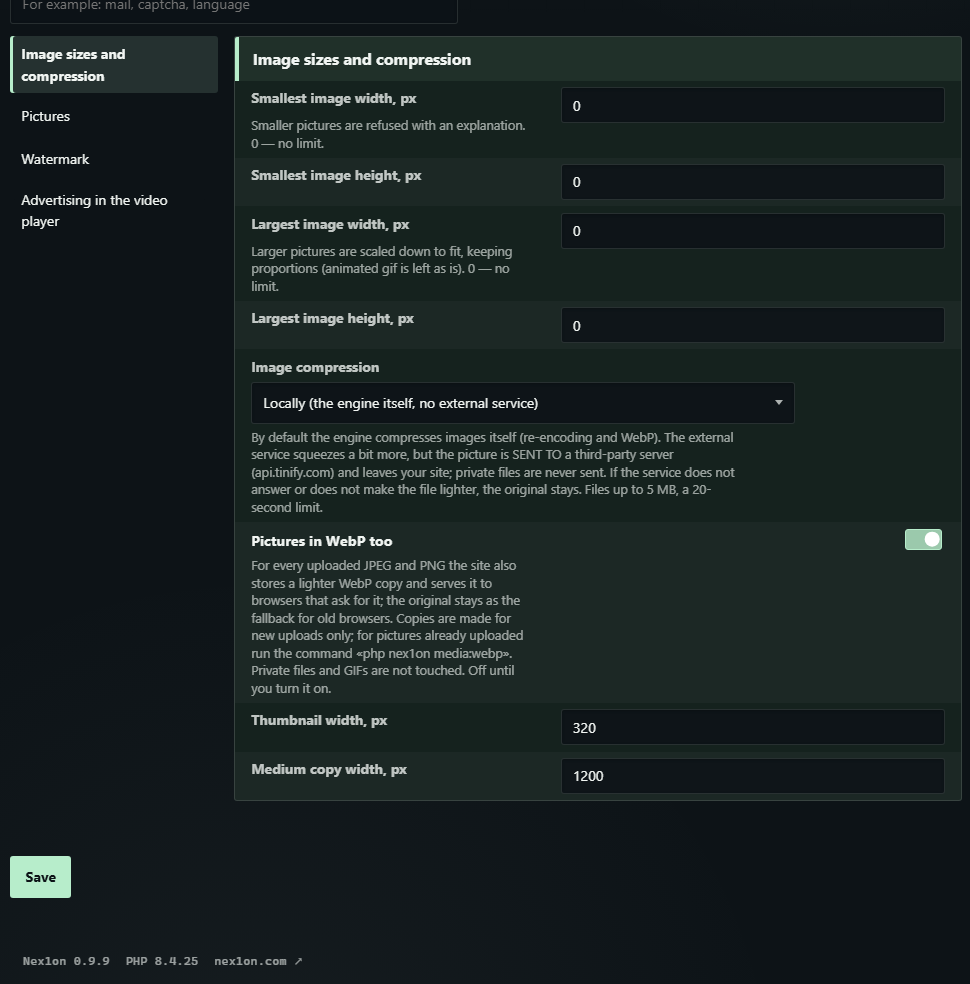
How to check. See what the engine wrote into the page:
curl -s https://example.com/ | grep -o '<img[^>]*>' | head -3
The pictures should have width and height (the page does not jump while loading), srcset and decoding="async". The main picture on the first screen has fetchpriority="high" and no loading="lazy"; the ones lower on the page have loading="lazy". This is by design: web.dev warns directly against lazy-loading a picture that is visible at once, otherwise the page opens slower.
If you skip it. Pictures are usually the heaviest part of a page, and one unsuitable photo can outweigh everything else.
Step 6. Fonts #
What to do. The themes that come with the engine do not load fonts from a server: the text uses the fonts already on the visitor's device, so nothing is downloaded. If you still add your own font, follow the web.dev rules: the WOFF2 format, only the styles you need,font-display: swap (or optional) and do not preload everything.
How to check. In developer tools, the Network tab, the Font filter: for a site with no loaded fonts the list is empty.
If you skip it. Every added font is an extra file that blocks the text or makes the page “jump” when the font is swapped in.


Пока никто не высказался. Будьте первым.