Nex1on installs by unpacking an archive: no SSH, no command line, no composer. All you need is your hosting control panel and a browser. Below is the path from empty hosting to a working site, and a list of what to check right after the install. The wizard itself takes about five minutes; the rest of the time goes on uploading the archive.
What you will need #
- Hosting with PHP 8.2 or newer (tested on 8.2, 8.3 and 8.4) and a MariaDB 10.4+ or MySQL 8.0+ database.
- An Apache or LiteSpeed web server with mod_rewrite; for nginx the archive includes a ready-made sample configuration.
- PHP extensions: pdo_mysql, mbstring, json, openssl, fileinfo. The gd extension is recommended: without it there are no resized copies of images.
- The Nex1on archive and access to the hosting file manager or FTP.
Step 1. Create an empty database #
In the hosting panel open the databases section and create a new database. Write down three things: the database name, the user name and the password. The engine does not create the database itself: ordinary hosting does not allow it to.Step 2. Upload and unpack the archive #
Upload the archive to the site folder with the file manager and unpack it there. If the manager cannot unpack, unpack the archive on your own computer and upload the folders over FTP.- The config, storage and public/uploads folders must be writable. Permissions 755 are usually enough; if the site still cannot write, set 775.
- It is best to make the public folder the site root: then the engine code is not reachable from the browser at all. If you cannot change the root and the archive sits right in public_html, the root .htaccess file from the archive does the job: it sends requests to public and closes the service folders.
Step 3. Open the site in a browser #
Every address of the new site leads to the install wizard until the site has an owner.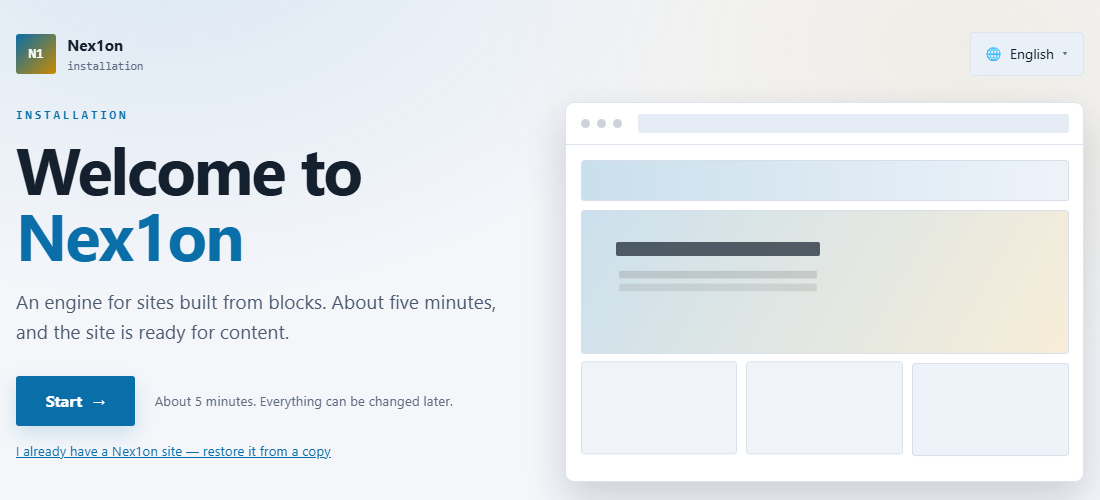
The wizard steps #
The wizard goes through nine steps; you will hardly notice some of them.- Language and country. The country sets the time zone, the date and number format, the first day of the week and the cookie consent banner. All of it can be changed later in the settings.
- Server. The wizard checks PHP, extensions and folder permissions itself. If everything is fine, the step passes on its own; if not, the red item says what to fix, and there is a “Check again” button.
- Database. Enter the database name, user and password from step 1. The server is usually localhost. After the check the wizard creates the tables: it takes less than a minute, and there is no need to close the window.
- Site owner. The email, username and password of the first account.
- About the site. The name, tagline, site language and time zone.
- Licence. You can continue free and enter a key later in the panel.
- What kind of site is it? The choice turns on the modules and theme you need; you can fill the site with sample content so there is something to look at.
- Mail. A check that email can be sent; this step can be skipped.
- Done. You can sign in to the panel.
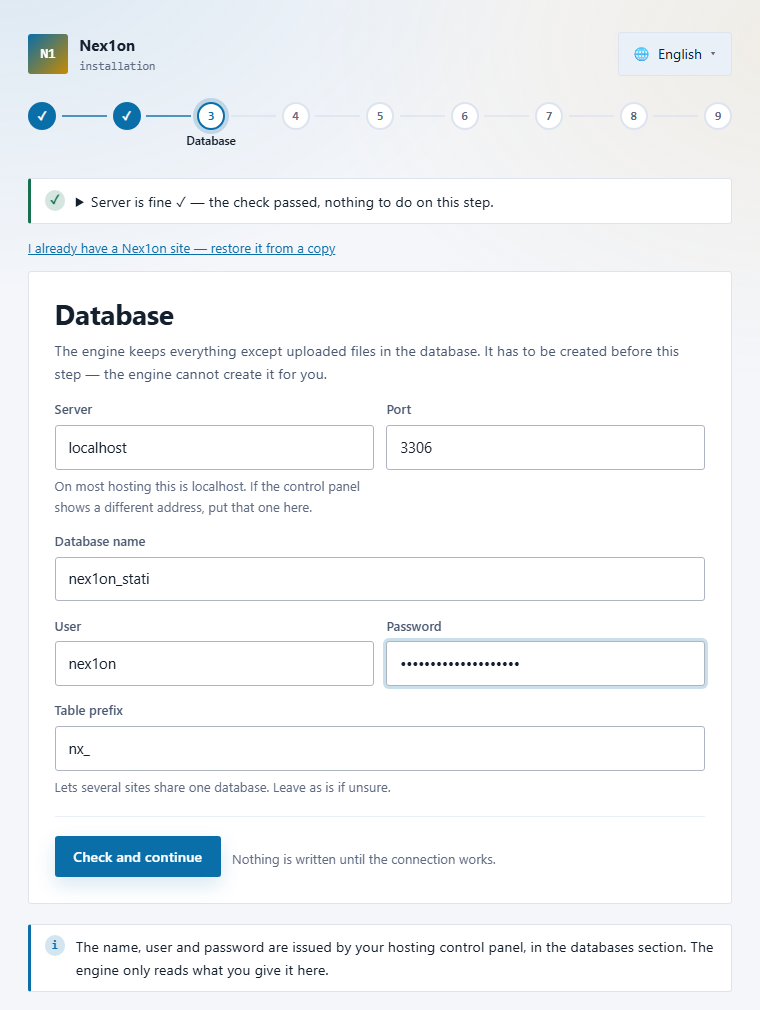
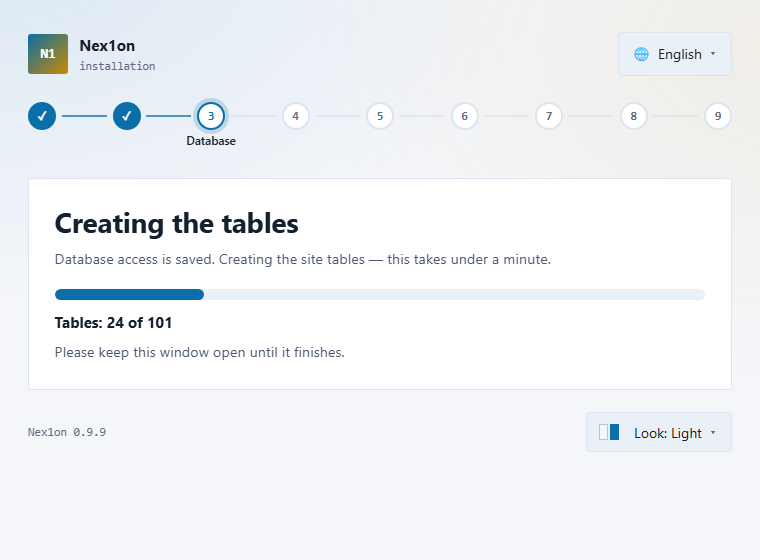
While the wizard creates the tables, a counter runs on screen and the window must stay open. If the connection drops, open the site address again and press “Try again”: the step resumes where it stopped.
Site owner #
The owner is the first account and has every right. Think of a long password (at least ten characters) or press “Make one for me”, and write it down right away.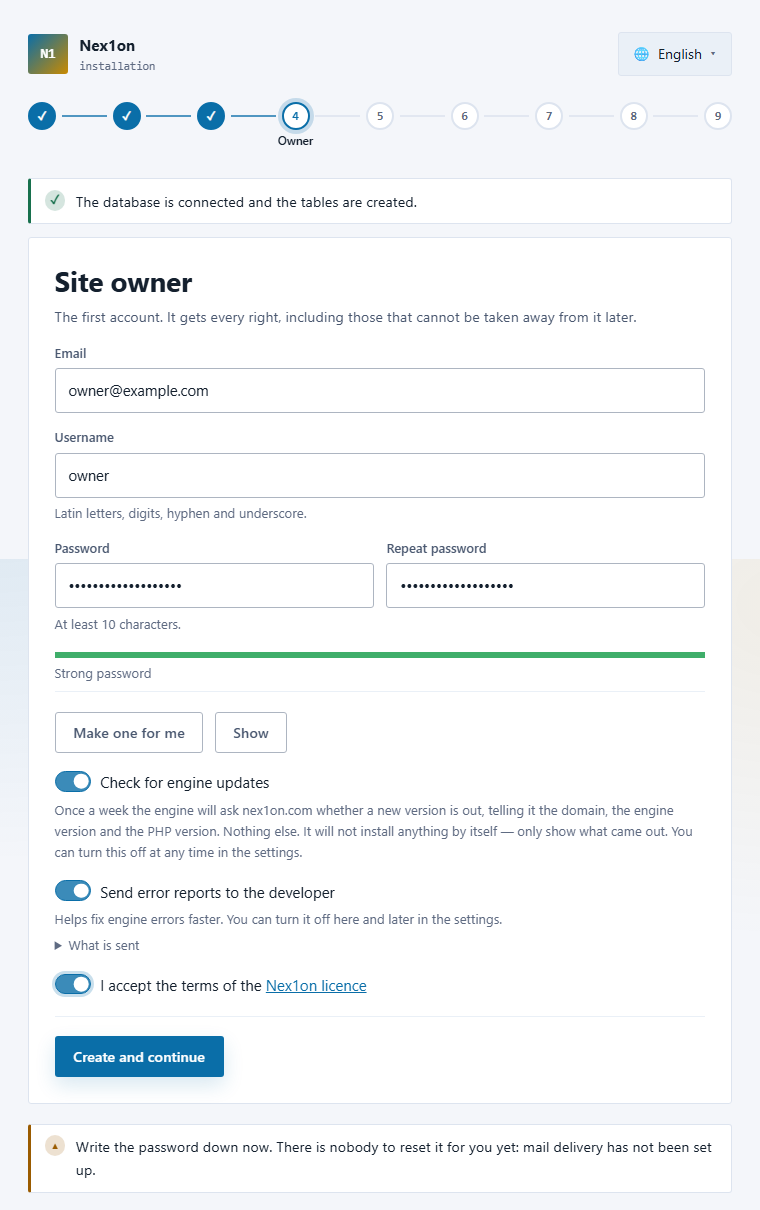
About the site and the licence #
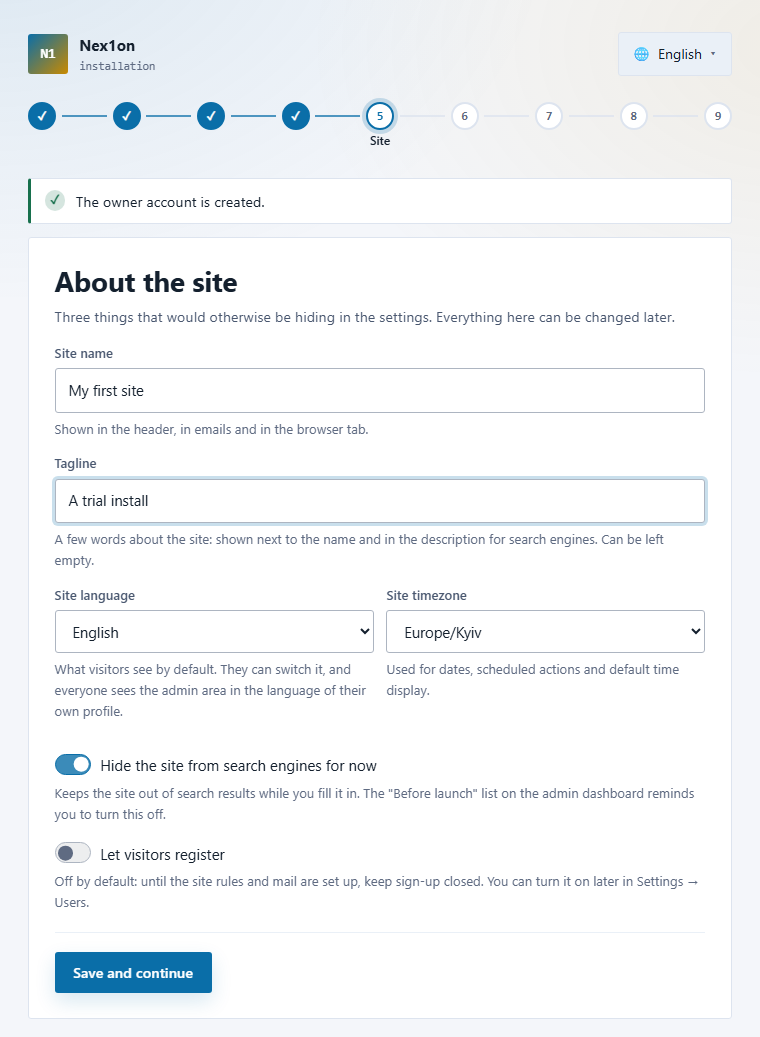
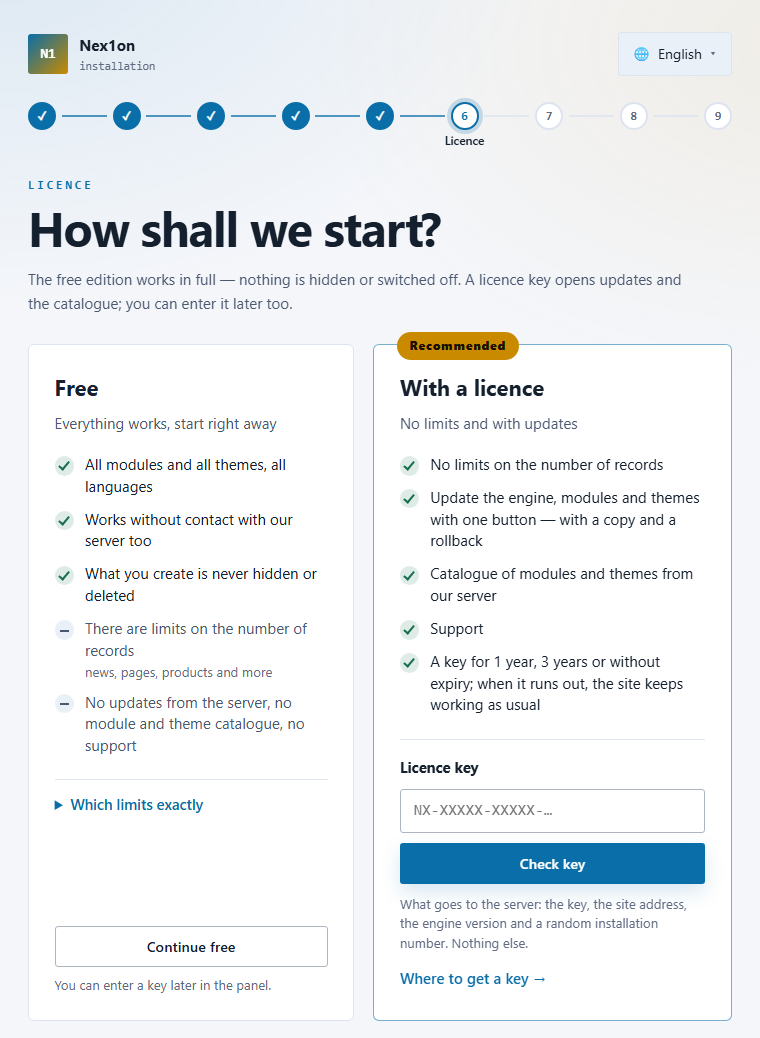
For free the engine works in full: every module, theme and language. What a key adds is described on the “Buy a licence” page; you can enter it later in the panel as well.
Kind of site #
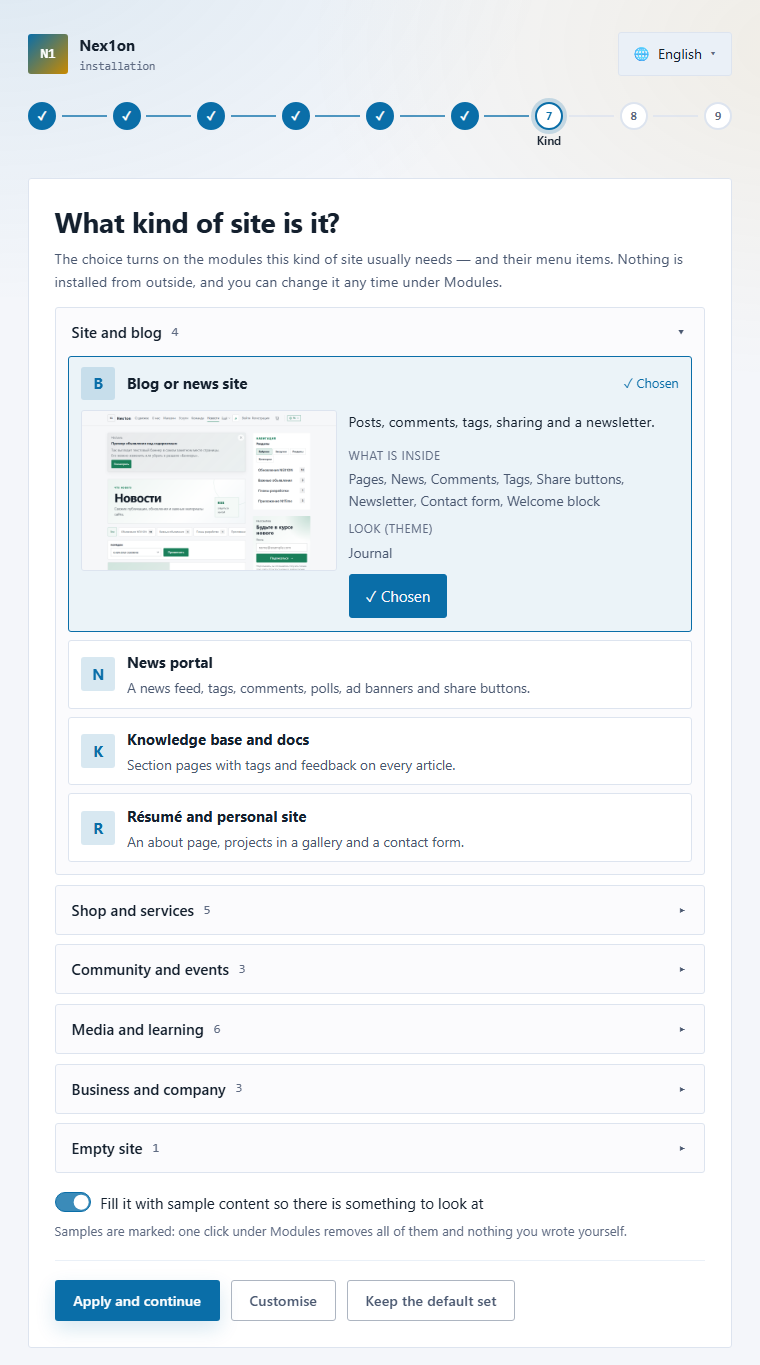
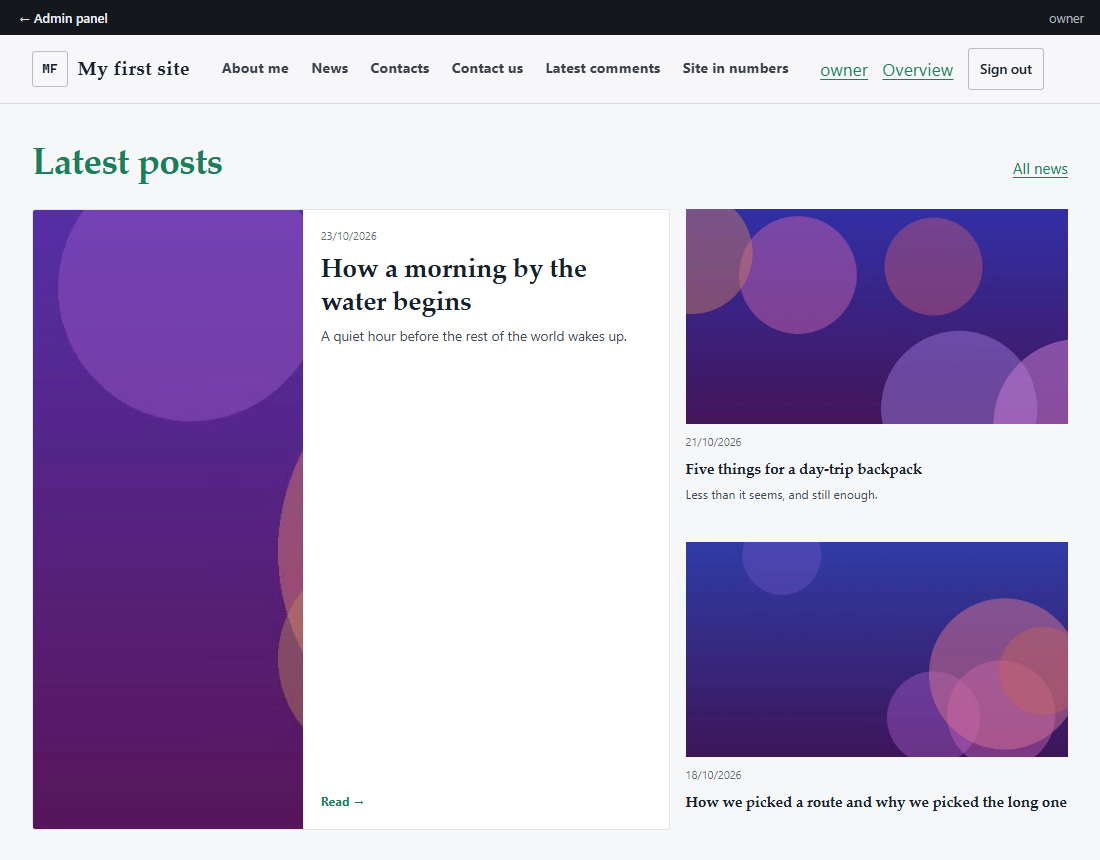
The chosen set turns on the modules such a site usually needs, and the menu items. Nothing is downloaded from outside, and everything can be changed later under Modules. If you leave “Fill it with sample content” on, the site gets example posts; they are marked, and one click under Modules removes them all at once without touching anything you wrote.
Mail and the end #
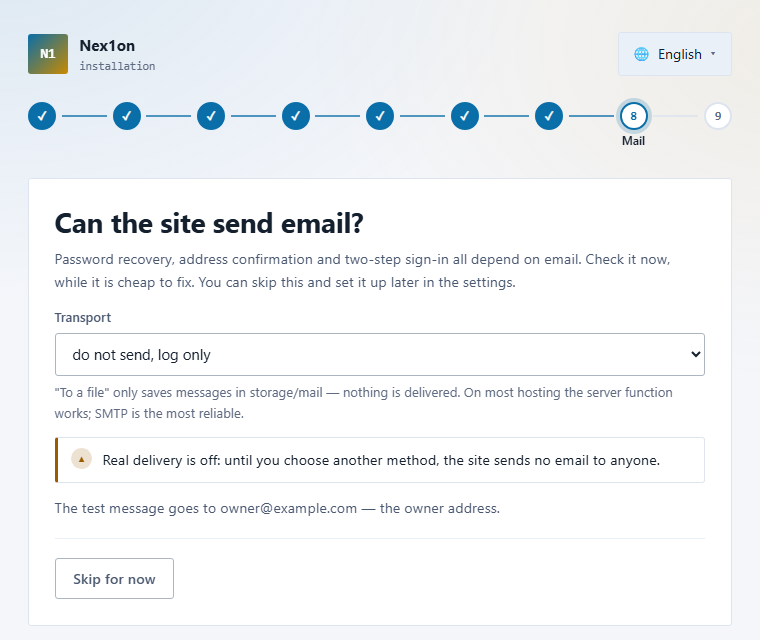
“Do not send, log only” means messages are put into the storage/mail folder and are delivered to nobody. For real delivery choose the mail() function or an SMTP server; SMTP is more reliable. You can skip the step and set up mail later.
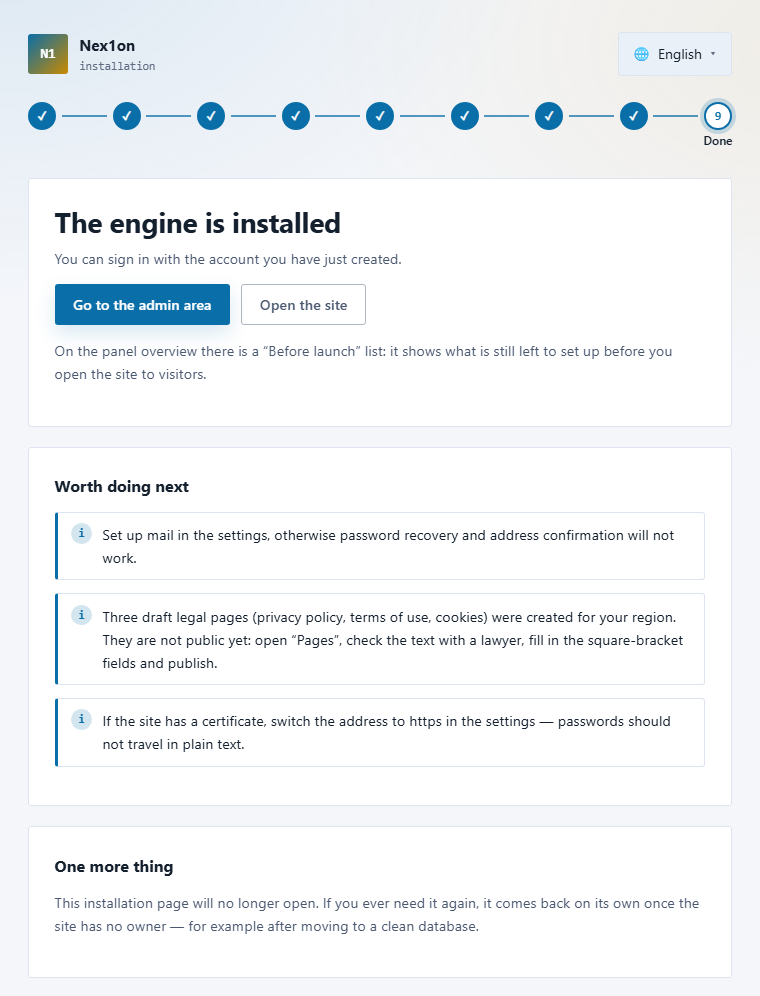
The install page will not open again. It comes back on its own only if the site suddenly has no owner, for example after a move to a clean database.
What to check right after the install #
Sign in to the panel: the overview has a “Before launch” list that shows what is left to set up before you open the site to visitors.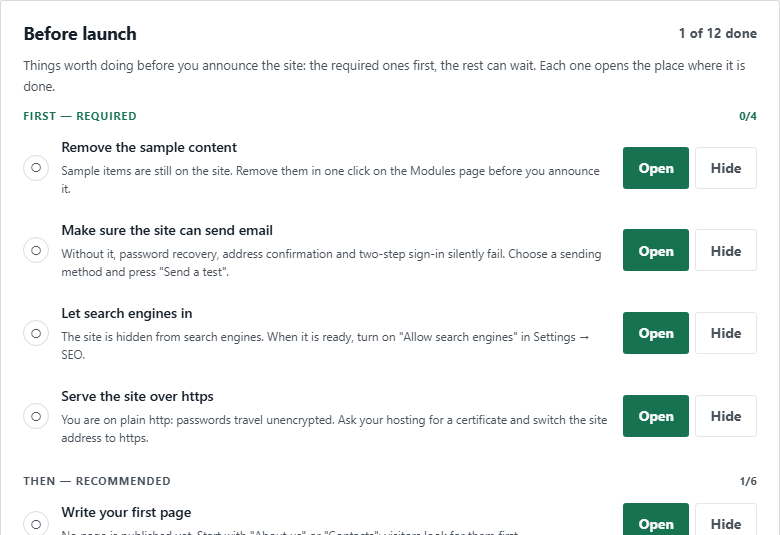
- The site opens and signing in to the panel works.
- The sample content is removed (if you installed with samples): the Modules section.
- Mail is set up and a test message arrived.
- The site address is switched to https: passwords must not travel in plain text.
- Search engine indexing is on once the site is ready: Settings → SEO.
- The first database backup is made: the “Database backups” tab.
- Two-step sign-in is on for your own account.
If something goes wrong #
- A red item on the “Server” step. The text under the item says what to fix. Fix it and press “Check again”.
- “Access denied” or “No such database”. Check the database name, user and password in the hosting panel; the database server is almost always localhost.
- “Creating the tables did not finish”. Nothing is lost: press “Try again” and the step resumes.
- A white screen after the “Database” step. Open the latest file in the storage/logs folder: its last line names the cause. Most often there is no write access to config or storage.
- The wizard asks for an owner but you have already created one. The site is installed: go to the /admin address.
Пока никто не высказался. Будьте первым.