Site security in one evening: 10 steps you can check yourself
Passwords, two-step sign-in, HTTPS, headers, the panel address, rights, backups and spam: every step has three lines: what to do, how to check it yourself and what happens if you skip it. No scare tactics.
Small sites are rarely hacked by someone hunting for you personally. It is bots that spend days trying the same weak spots: short passwords, old versions, an admin panel at the default address, open registration. Close those spots and your site stops being an easy target. Below are ten steps for one evening. Each has three lines: what to do, how to check it yourself (a screen or a command), and what happens if you skip it.
This is not a “click everything” list: the steps are independent, take them one at a time. The engine does part of the work itself: for example, it sends the security headers to the browser (step 5), so all you have to do is make sure they arrive.
Your control panel: “Site protection” #
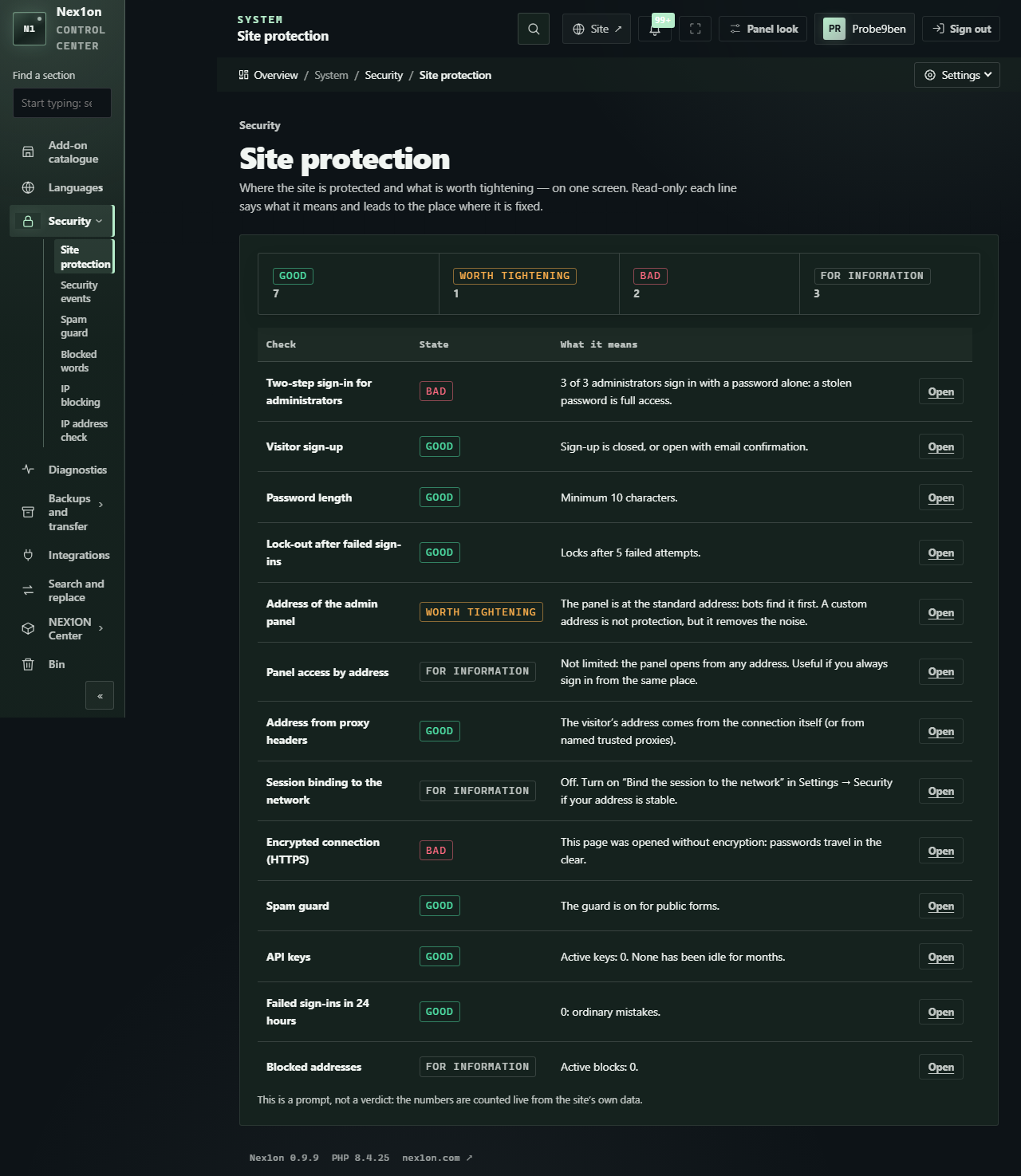
Open “System → Security → Site protection”. It is one screen that shows what is fine, what is worth tightening and what is bad. Every row explains itself and leads to the place where it is fixed. Almost every step below is checked by a row on this screen.It is a hint, not a verdict: the figures are counted on the fly from your site's data.
Step 1. Updates #
What to do. Open “System → Updates” (the page is visible to those who have the site-settings right: the owner and administrators) and update if there is a new version. Make a database backup before updating (step 8): the engine makes one by itself, but a manual copy costs nothing. How to check. The same page shows which version you have and whether a new one exists. Look there once a week, where you check orders or mail. If you skip it. Holes that are already closed in the new version stay open on your site, and everyone knows about them: a fix is published together with a description of the bug.Step 2. Password and password guessing #
What to do. In “Site settings → Sign-in and users → Registration and users” set “Minimum password length” to 10 characters or more (this is the default). Length alone does not save you, but the engine rejects obvious passwords separately. Then in “Security → Login and sessions” make sure “Sign-in attempts” is no more than ten. By default it is five failures, after which sign-in to that account is closed for 15 minutes (the time is set in “Lock for, minutes”), and a bot hits the limit. How to check. On the “Site protection” screen the rows “Password length” and “Lock-out after failed sign-ins” should be “Good”. If you skip it. Short passwords and unlimited attempts make guessing a matter of time. It is the simplest way to break in, and two numbers close it.Step 3. Two-step sign-in #
What to do. In your own profile turn on the second step (“Enable 2FA”): a code from an app on your phone confirms the sign-in. Save the “Backup codes”: each works once and you need them if you lose the phone. Then ask the same of every administrator. When everyone is used to it, in “Site settings → Sign-in and users → Security → Admin access” switch “Two-factor protection” from “Recommend” to “Require for administrators”. It will not lock you out: the engine sends everyone who has no second step yet to their profile to turn it on, and the profile is always available. So there is nothing to be afraid of. How to check. The row “Two-step sign-in for administrators” on the “Site protection” screen; the “Users” list has a “Two-step sign-in” filter that shows who still has it off. If you skip it. A password can be stolen not from you but from some other service where you used the same one. Then, without the second step, the way into the panel is open.Step 4. Encrypted connection (HTTPS) #
What to do. Make sure the site has a certificate and opens overhttps://. Only then, in “Site settings → Sign-in and users → Security → Connection”, turn on “Secure connection only (https)”. Do not turn it on without a certificate: the redirect would send visitors nowhere.
How to check. Open the site at an address starting with http://: the browser should move to https://. The same on the command line:
curl -I http://example.comLocation: https://example.com/. The row “Encrypted connection (HTTPS)” on the “Site protection” screen should be “Good”.
If you skip it. Passwords and sessions travel in plain text: in someone else's public network a stranger can read them.Step 5. Security headers #
What to do. Almost nothing: the engine sends them itself. Your task is to make sure a proxy or hosting in front of the site does not strip them. How to check.curl -I https://example.comX-Content-Type-Options: nosniff: the browser does not guess a file's type;X-Frame-Options: SAMEORIGIN(on some pagesDENY) and, inContent-Security-Policy,frame-ancestors 'self': another site cannot put your page in a frame;Referrer-Policy: strict-origin-when-cross-origin: extra parts of the address do not leave the site;Permissions-Policy: camera, microphone and geolocation are off until they are needed;Strict-Transport-Security: max-age=31536000over https: the browser remembers to use the secure connection only.
Step 6. Panel address and access by address #
What to do. In “Site settings → Sign-in and users → Security → Admin access” enter a “Custom admin address” (Latin letters, digits, a hyphen), make up your own, do not copy the example in the picture below. Write it down next to your password. The “Allow the admin panel only from these addresses” field is only for those with a permanent address (for example, an office with its own address): from other addresses the panel answers “no such page”. A home or mobile address usually changes, and then you end up outside the door yourself: a list without your current address cannot be saved, but tomorrow the address may be different. Without the panel the restriction can be lifted only with the commandphp nex1on admin:access on the server. Without access to the server console and without a permanent address it is better not to turn this field on.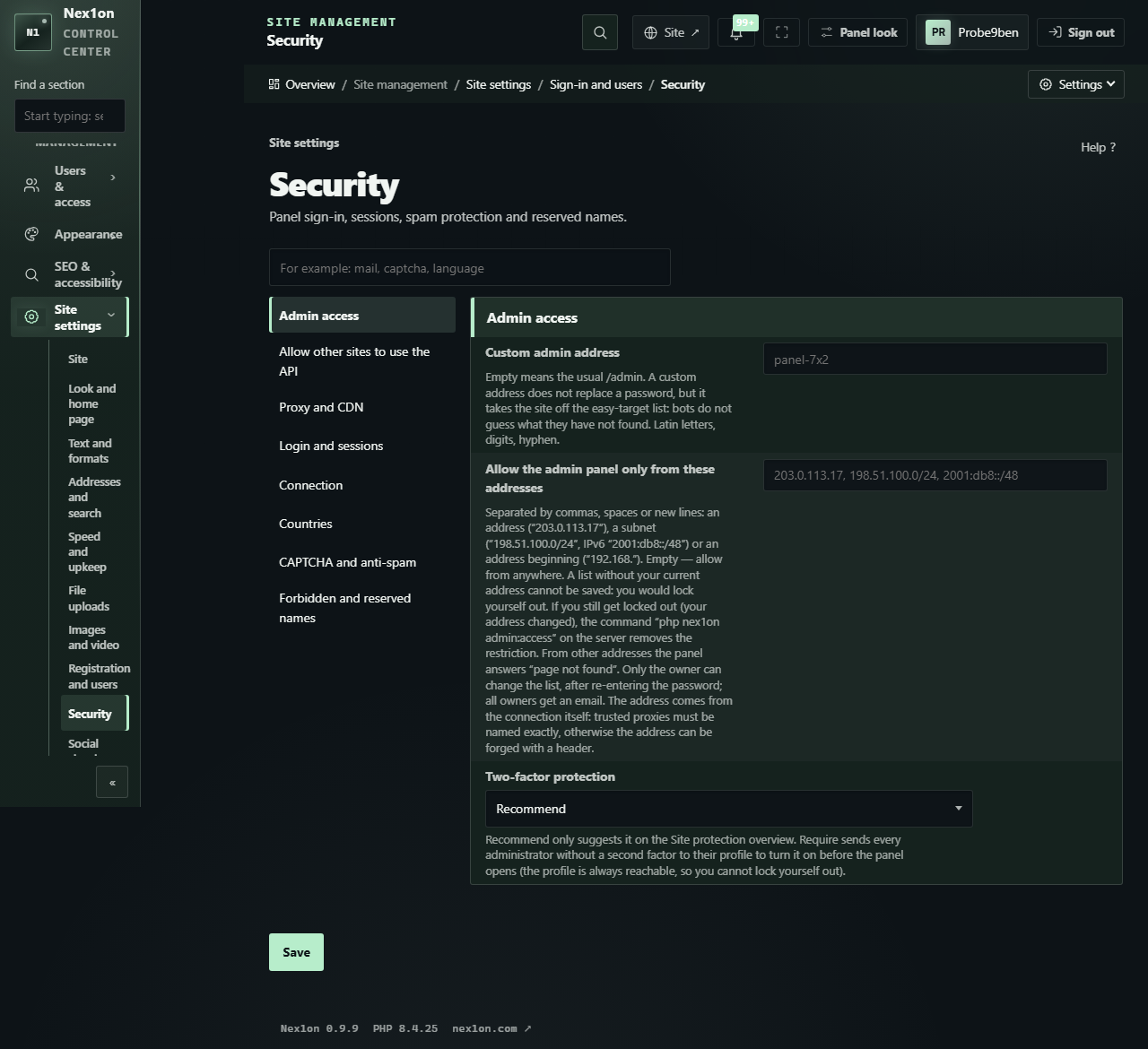
How to check. Open the new address: the sign-in should open. The old /admin should answer “no such page” (404). The rows “Address of the admin panel” and “Panel access by address” on the “Site protection” screen will reflect it.
If you skip it. Nothing terrible happens, but bots find the panel at the default address first, and the noise in the log grows. A custom address does not replace the password and the two-step sign-in, it only takes you off the list of easy targets.


Пока никто не высказался. Будьте первым.