A site rests on three things: the database, the uploaded files and the engine itself. The engine can always be taken from the archive again, but entries, users and settings live only in the database, and pictures and documents only in the uploads folder. Below: how to make a backup, how to bring the site back when something goes wrong, how to move to another hosting or another address, and how to carry content from site to site.
What is kept where #
- The database: entries, pages, products, users, settings. A “database backup” saves it. The site's files are not in the backup.
- The uploads folder: uploaded pictures, videos, documents. It is not part of the database backup; it is moved over FTP.
- The engine: the files from the archive. The site key and the database access live in the config folder.
Step 1. Make a database backup #
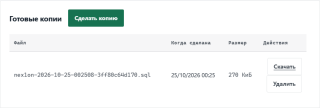
Open “System → Backups and transfer → Database backups” and press “Make a backup”. The file appears in the “Existing backups” list; it can be downloaded and deleted. It lies outside the public folder, and only a person signed in to the panel can download it.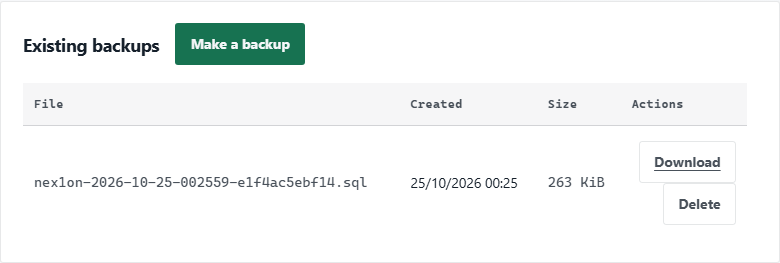
Do not wait for trouble to make backups. Open the “How often to back up and how many to keep” block: there you can have a backup made by itself every few days (zero means do not) and turn on gzip compression: the file gets several times smaller, and a restore reads it as usual.
Step 2. Restore the database from a backup #
At the bottom of the same page there is the “Restore the database” block. Choose a backup, type its name by hand to confirm and press “Restore the database”.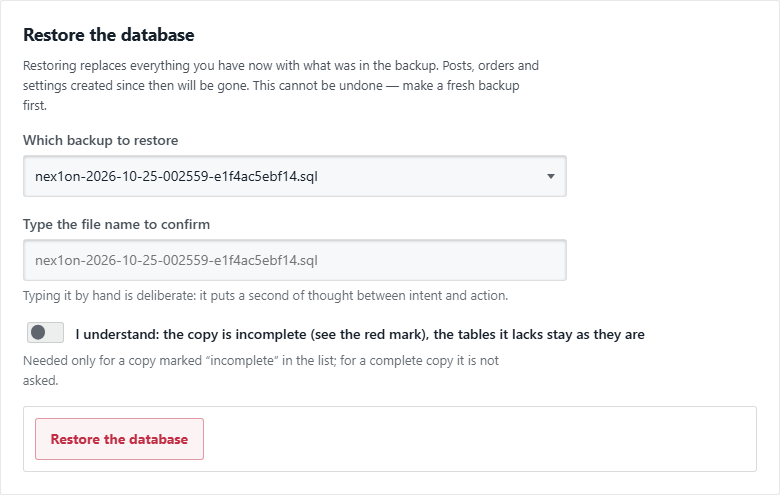
A restore replaces everything there is now with what was in the backup: entries, orders and settings that appeared after it will disappear. But you are not left without a way back:
- before a restore the engine takes a backup of the current database itself and names its file;
- if a restore broke off, the top of the page shows “A restore was started and not finished” and a “Return to the state before the attempt” button;
- a backup that lacks some tables is marked red as “incomplete” in the list: restoring from it must be confirmed with a separate tick, because the tables missing from it stay as they were, and some data will be new and some old.
A backup can also be uploaded from your computer, in the “Upload a backup from your computer” block: only the owner can do it, and after a repeated password. Only a .sql or .sql.gz file made by this engine is accepted; any other SQL is rejected. An uploaded backup lands in the list, and restoring from it is a separate action with confirmation.
Step 3. A backup off the server #
Open “Backups and transfer → Off-site copies”. A copy is encrypted on the site and leaves the server: to S3-compatible storage, over WebDAV or SFTP. It is off by default.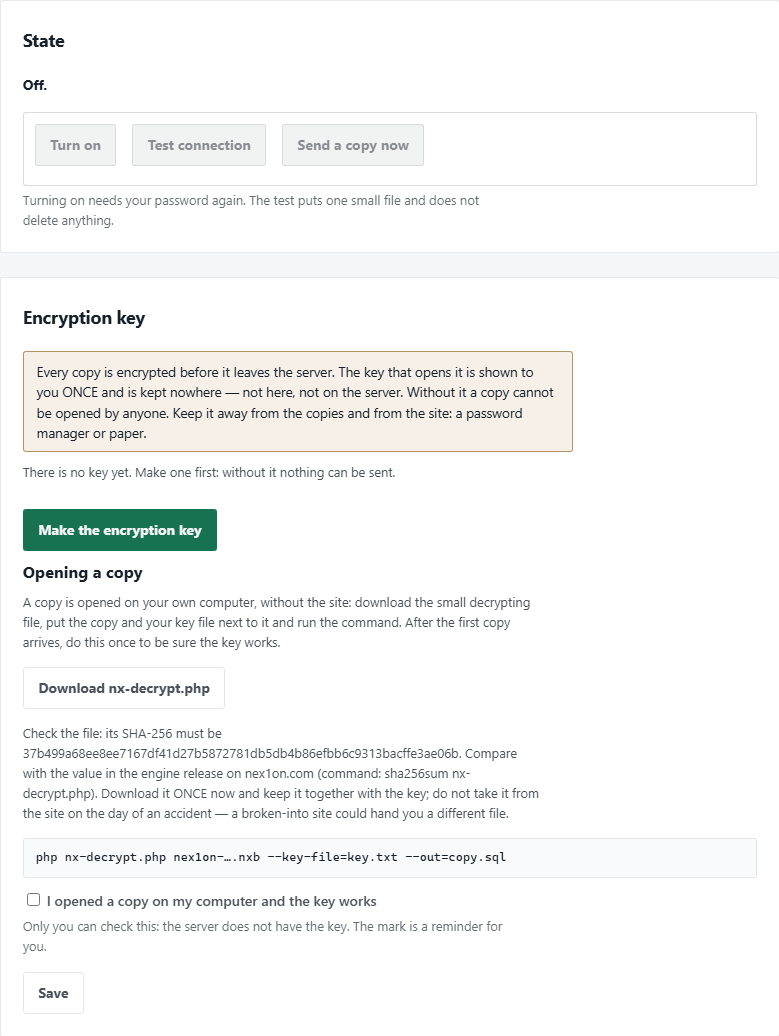
The checksum of the decryption file in the screenshot is an example for the version it was taken from: check it against the value in the release of your own engine version.
- Make the encryption key. It is shown once and kept nowhere: neither here nor on the server. Without it nobody can open a copy, so save it in a password manager or print it and keep it apart from the site.
- Download the nx-decrypt.php file once, check its SHA-256 sum against the value in the engine release on nex1on.com and keep it together with the key. Copies are opened on your own computer, without the site, with one command.
- Fill in the storage settings. Give the storage key the right to write only, with no delete and no listing: the key lies on this site, and if the site is hacked, a key that can delete would wipe the off-site copies too. That is why it is better not to leave cleaning old copies to the engine (the “keep the last ones” option needs a key that can delete), but to set a retention period on the storage side: an object lifecycle.
- Press “Test connection”: it puts one small file and tries to remove only that file (a key that can only write cannot delete, and then the file simply stays: that is not an error). For SFTP, check the server key fingerprint against what your hosting tells you: a copy goes only to a server with exactly that key.
- When the first copy arrives, open it on your computer and tick “I opened a copy on my computer and the key works”: that way you learn the key works before you need it.
Sending can be turned on only after you confirm that you saved the key; turning it on and changing the storage ask for your password and email every owner.
Moving to another hosting #
You need three things: a fresh database backup, the uploads folder, and the engine archive of the same version as the backup, or newer.- Make a database backup and download it. Download the uploads folder over FTP.
- On the new hosting create an empty database and unpack the engine archive (see the article on installing without SSH).
- Put the backup file (.sql, .sql.gz or an encrypted .sql.gz.enc) into the storage/import folder.
- Open the site and on the first screen press “I already have a Nex1on site — restore it from a copy”. Go through the language, the country and the database: instead of the next step the wizard offers “Restore from a copy”.
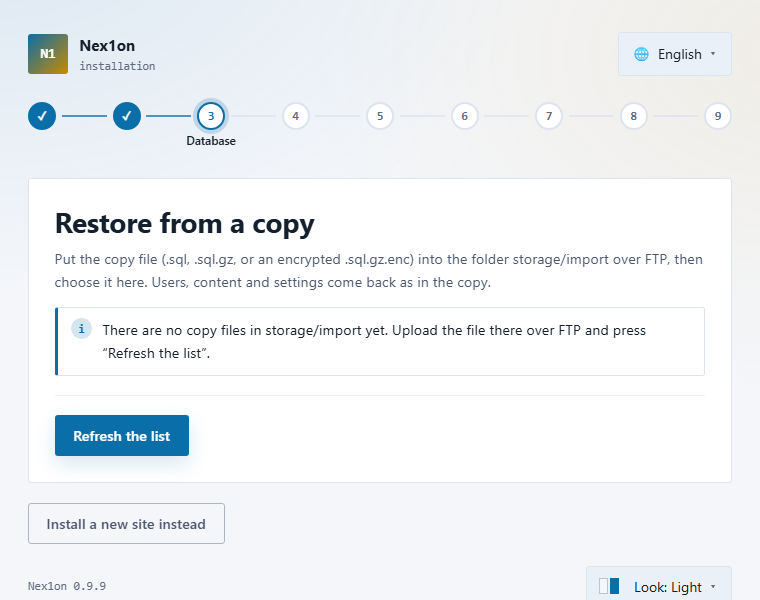
The wizard checks the copy and writes nothing until it turns out to be whole. The table prefix in the database must be the same as in the copy, and if the copy was made by a newer engine, install the same one first.
Deliberately not carried over is what must not live on the new site without your knowledge: sessions and “remember me”, password-reset and invitation links, API keys and app sign-ins, mail queues, and the settings tied to the old place: the update source, off-site copies, trusted proxies, AI and social keys. Mail sending is switched to “to a file”, and two-step sign-in is turned off for everyone.
At the end the wizard asks the owner to name their account and confirm it with the old password or set a new one: until that is done nobody can sign in as an administrator, and the other administrators and moderators stay closed until you open them under “Users”.
Moving to another address #
When the site already stands on the new domain but the entries and menus still carry the old one, open “System → Diagnostics → Move to another address”. Only the owner can do this.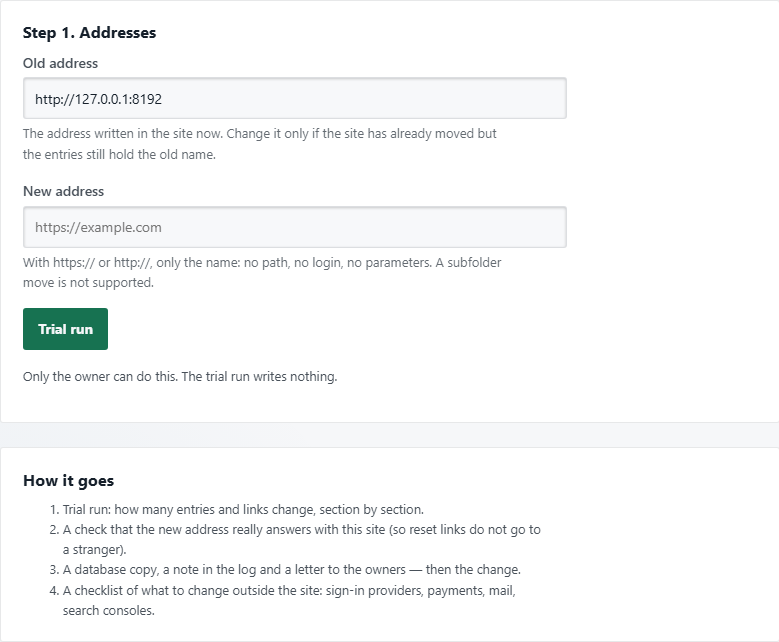
The wizard goes step by step, and nothing is written until you press “Apply”:
- Enter the old and the new address and press “Trial run”: you will see how many entries and links will change, by section.
- The engine checks that this very site answers at the new address, so that password-reset links do not go to a stranger. If the new address is not ready yet (DNS is moving), the button is off: fix the DNS and repeat the trial run.
- If you have a licence key, it is tied to a domain: the engine says whether the new address is in it. Without it the site falls back to the free mode until the key is moved.
- To confirm, type the name of the new domain. Then the engine asks for your password, makes a database backup itself, writes it to the log, emails the owners and replaces the address.
Accounts, tokens and sign-in keys, logs, the queue, statistics, orders and payments, and encrypted values are not changed. After the replacement the wizard shows a checklist of what the engine cannot do for you: social sign-in (the return address at the provider), the session cookie domain, the “From” address and SPF, DKIM and DMARC for mail, search consoles, payment systems and webhooks, a certificate and a CDN for the new name. While the old name points to this site, the engine itself answers it with a 301 redirect to the same path at the new address.
Moving content from site to site #
If you need not the whole database but pages, news, tags and files, open “Backups and transfer → Export and import”. Tick what to put in the archive and download it. Personal and secret things do not travel: no accounts, orders, emails, keys or passwords. An import first only checks the archive: you will see what will be created, updated and skipped, and nothing is written until you confirm. The same screen also takes a WordPress export (.xml) and a table (.csv).What to check #
- There is a fresh database backup, and you know where it lies.
- The off-site copy is on, the encryption key is saved apart from the site, and the first copy has been opened on your computer.
- The uploads folder is copied separately, together with the database backup.
- You have checked a restore at least once on an empty database or a copy of the site, not on the day of the accident.
- After a move: mail is set up, two-step sign-in is on, passwords and keys are entered again, the old backup file is deleted.
If something goes wrong #
- “The backup could not be made”. Most often the site has no write access to the storage/backups folder: check the permissions.
- A restore broke off. Do not start other changes until you press “Return to the state before the attempt”: it puts the database back as it was before the restore.
- The wizard says the copy needs updates this engine does not have. The copy was made by a newer engine or an edition with other modules: install the same edition and repeat.
- The wizard speaks of a different table prefix. Go back to the “Database” step and enter the prefix the copy has.
- Nobody can stay signed in at the new address. On an address change everyone is signed out: sign in again. If sign-in does not hold, check the session cookie domain in the settings.
Пока никто не высказался. Будьте первым.