A Nex1on site is made of modules: news, pages, comments, a forum, a shop, forms. Each adds its own sections to the menu and the panel, its own pages to the site and its own permissions. It is tempting to switch everything on “for growth”, but it is better to start small: an extra module means extra menu items, pages that need filling and checking, and permissions that need handing out. Below: how to read the “Modules” page, where to start, and how to add the rest as the need comes.
What a module is and what “disable” means #
A module is a part of the site with its own set of abilities. An enabled module is visible on the site and in the panel. A disabled one is not, but the data stays whole: the engine says so itself: “Module … disabled. Its data is intact.” Enable it again and everything is in place. That is why it is better to disable what you do not need than to delete it: deleting removes the module together with its data, and to confirm it you have to type the module's name.Step 1. Open “System → Modules” #
The page shows what is on the site: you can enable, disable and configure any module. There are two blocks at the top. “Site kind” reminds you which set the site was built from after the install wizard, and the “Undo the kind” button puts everything back as it was before. “Samples” are the example entries the wizard added so the site was not empty: one “Delete all samples” button removes them all at once, and what you wrote yourself is not touched.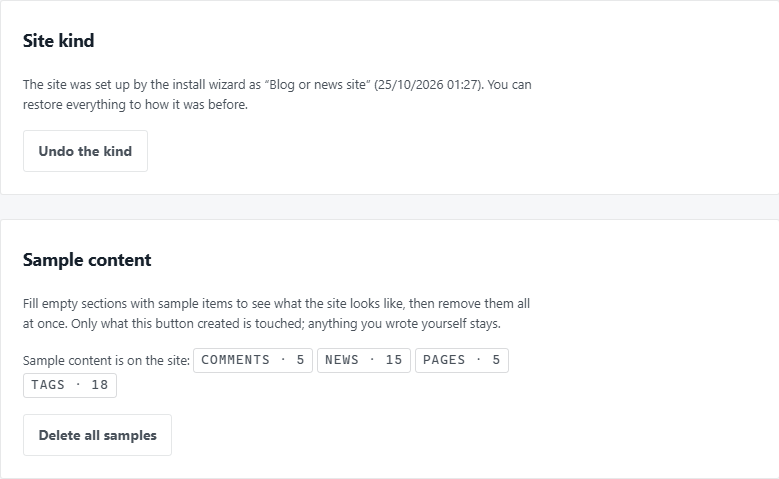
Below there are a search, the filters “All”, “Enabled”, “Disabled”, “Update available”, “Third-party”, and the modules grouped: content, community, media and video, marketing and others. Every module has a short description, a “Details” link, a state and the buttons “Configure” and “Enable” or “Disable”. Modules from the distribution are marked “Built-in”.
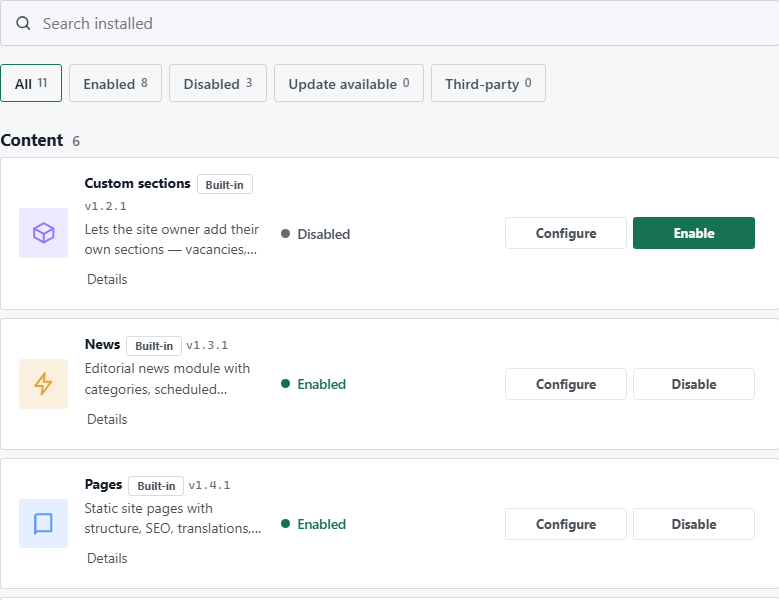
Which modules exist in your edition is visible on this page; missing ones are added by the “Add a module” link.
Step 2. Enable the basics #
For most sites a small core is enough:- Pages: “About us”, “Services”, “Terms”. Static pages with SEO, translations and version history.
- News, if you write entries: categories, scheduled publishing, RSS. For a blog it is the main module.
- Contacts or Contact form: an address, a phone, opening hours and a contact page with a form. Messages are saved in the database and sent by email if mail is set up; so nothing is lost until it is.
- Welcome block: the first block of the home page with the main action and quick links.
Step 3. Add what helps the reader #
When the basics work, add one at a time and check how it looks on the site:- Tags: set right on entries; they gather entries into a cloud and tag pages.
- Share buttons: a strip under every entry (Telegram, WhatsApp, Facebook, X, VK, LinkedIn, email, “copy link”); they are ordinary links to the services themselves.
- Comments: reply threads, pre-moderation, bulk moderation. Start with pre-moderation: that way nothing you have not seen gets onto the site.
- Newsletter: a subscription form; a subscription is confirmed by email, and an unsubscribe is one click from any issue. It needs working mail.
- Traffic: who comes and to which pages; the engine counts it itself, with no third-party counter.
- Cookies and consent: the cookie consent bar that is usually required in the EU, the EEA and the UK (check with your own lawyer), and the counters that wait for it.
Step 4. Take by task, not “just in case” #
Enable the other modules when there is a task they solve:- Forms: questionnaires, job applications, orders with questions, a page of their own or a block.
- Bookings: the visitor picks a service, a day and a time; free slots are counted from your working hours.
- Reviews: stars, an average rating and the owner's reply; a review waits for checking.
- Shop: a catalogue, a cart, orders; for payment add the Payments module.
- Forum, Polls, Bookmarks, Private messages: when a community appears on the site.
- Downloads, Events, Gallery: a file archive, an events listing, photo albums.
- Custom sections: any list with fields of its own (vacancies, projects, properties) with no programmer.
- Banners: places for your own announcement or someone else's advertising.
Dependencies #
Some modules rely on others: “Payments” on “Shop”, “Read also” on “Tags”, “Advertiser cabinet” on “Banners”. If you try to disable something others rely on, the engine stops you: “First turn off what relies on…”, and lists them. Enable and disable in order: the supporting ones first, then the dependent ones.After enabling a module #
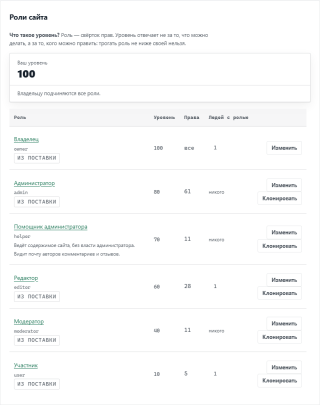
A new module adds items to the panel menu and pages to the site. Go through them: open the module's page on the site and in the panel, and look at its “Settings”. The module comes with permissions of its own: look under “Users & access → Roles” at who has them, and adjust if needed.What to check #
- Only the modules you use now are enabled; the rest are disabled (not deleted).
- The samples are removed if the site is ready for visitors: the “Samples” block on the “Modules” page.
- For every enabled module you have opened its page on the site and its page in the panel.
- Modules that need mail (the newsletter, emails about messages) are checked with a test email.
- Before enabling something big (a shop, a forum) you made a database backup.
If something goes wrong #
- A module will not disable. Others rely on it: the engine lists them; disable those first.
- An item is missing from the menu after enabling. The panel menu shows only what you have permission for: check the roles.
- A module is “downloaded to hosting, not installed yet”. Press “Install” in the list, and after installing, “Enable”.
- “This module has been edited on your side”. An update will lay our files over yours: keep your edits apart or make a backup.
- You want everything back as it was before the kind. “Site kind” → “Undo the kind”. If you have already turned off some of its modules yourself, the engine says so.
Пока никто не высказался. Будьте первым.