Who on the site may write news, who may change the settings, and who sees only the public pages is decided in Nex1on by permissions. Permissions are not handed out one by one: they are gathered into roles, and roles are given to people. Below is how it works, how to give a person what they need and nothing more, and which safeguards the engine adds itself so that you cannot lock yourself out of the panel.
How it works #
- A permission is one concrete action: for example “create entries” or “manage users”. Permissions are declared by the core and by modules; when you turn a module on, its permissions appear for roles too.
- A role is a named set of permissions: Editor, Moderator, Member. A role can be adjusted, and you can make one of your own.
- A level is a role's number. It answers not what a role may do, but whom it may edit: you cannot touch a role that is not below your own. A person's level is the highest level among their roles.
- Personal permissions are exceptions for one person: add or take away something on top of their roles.
Built-in roles #
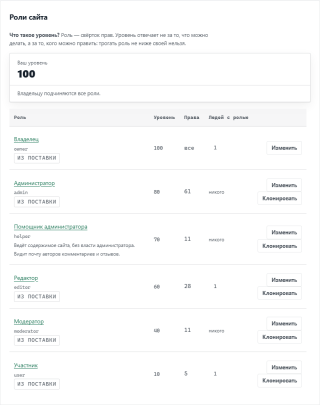
Right after the install there are six roles; the levels below are as in a clean install.- Owner, level 100: everything is allowed, permissions are not configurable.
- Administrator, 80: a wide set of rights to manage the site, but below the owner.
- Administrator's assistant, 70: manages the site content with no administrative power; sees commenters' and reviewers' email addresses.
- Editor, 60: works with entries and pages.
- Moderator, 40: keeps order in comments and on the forum.
- Member, 10: an ordinary registered person.
Step 1. See which roles there are #
Open “Users & access → Roles”. For every role the table shows its level, the number of permissions and the number of people who hold it; at the top it says what your own level is.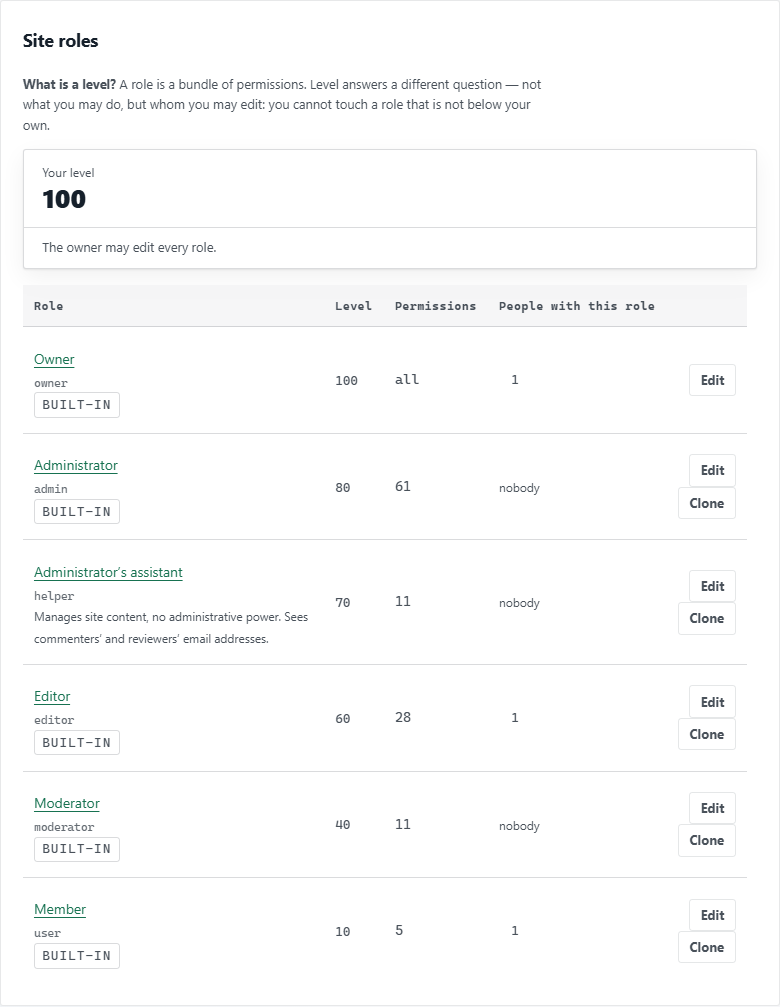
At the bottom of the page there is “Compare roles”: a “permission — role” table that shows at once how roles differ from each other. It is calculated when you press “Show”.
Step 2. Set up a role's permissions #
Press “Edit” next to the role you need. Permissions are gathered by section: admin, content, security, system, users. Every section has “Tick all” and “Untick all” buttons, and the search finds a permission by part of its name or its machine name: for example, users.edit.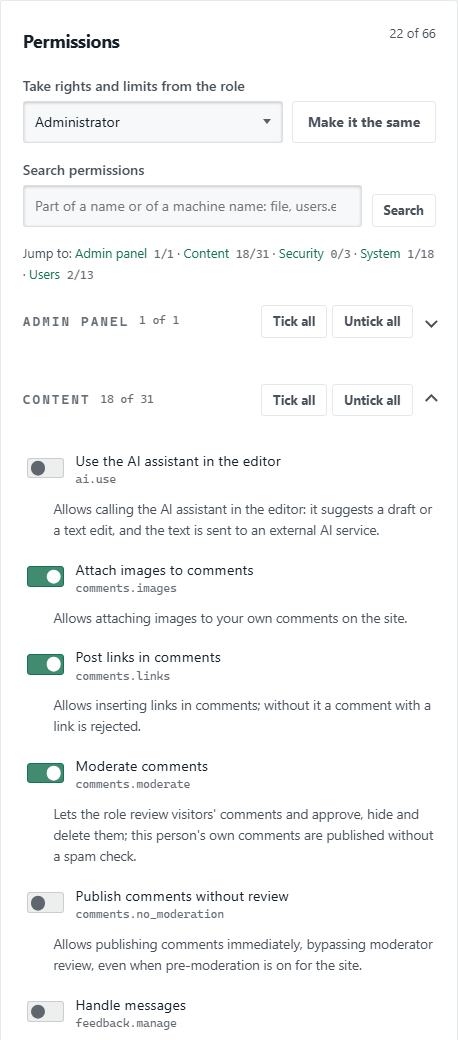
Ticks have no effect until you press “Save”: until then the role keeps its old permissions. The search does not untick anything; the other permissions stay as they were.
Below on the role page there are two more blocks. “About the role” holds the level, the description and the look of the name: a colour and an icon next to the name of everyone who has this role, in comments, on the forum and in the profile. The look changes only the appearance, not the access. “Limits” says how much a role may do: file size, the number of files and comments per day, the time to edit one's own comment. Zero means the role sets no limit and the site's general setting applies; if a person has several roles, the most generous limit is used.
Step 3. Give a role to a person #
Open “Users”, pick a person and find the “Roles” block at the top right of their page: tick the roles you need and press “Save”. Every role is labelled with its machine name and level, so it is clear at once who stands above whom.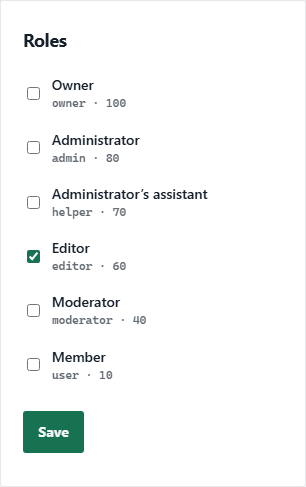
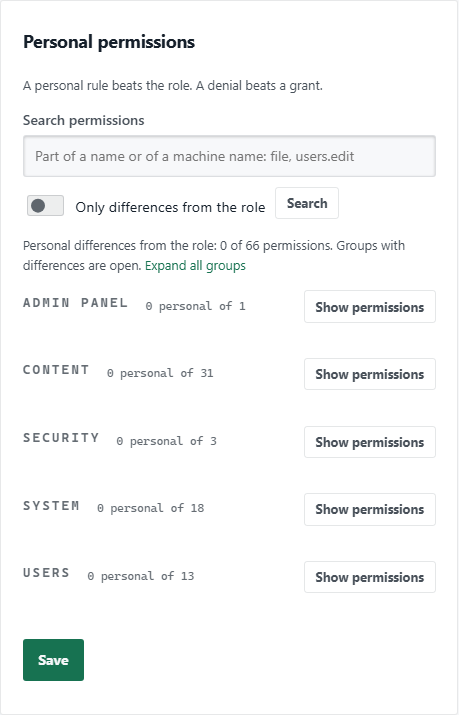
Further left and lower on the same page are the “Personal permissions”. They are for exceptions: for example, an editor who must not delete entries. The “Only differences from the role” switch shows just what differs from the role, so you can see how this person is unlike the others with the same role.
If a role is needed for a while, give it in the “Sanctions and terms” block (the “Give a role for a time” line): the role is given for the chosen number of days and ends by itself. A timed block and a ban on publishing live there as well.
Rules that work by themselves #
- Automatic change (“Roles → Automatic change”): a rule like “whoever has role A and has been registered for 30 days gets role B”. The site checks the rules once a day; only the owner can change them. Only a safe role can be given automatically: one with no more permissions than an ordinary member, and below the moderator level.
- Role categories (“Roles → Role categories”): which categories a role sees. By default everything is visible; you can hide some categories or leave only the chosen ones, and for hidden categories close just the full text and keep the short one in the feed. A person with several roles sees a category if at least one of their roles opens it.
Engine safeguards #
- The owner cannot be deleted while they are the owner, and a site cannot be left without an owner: the last owner must first name a successor.
- You cannot take away your own panel access or permission management: only the owner could give it back.
- A role not below your own cannot be edited, and a new role's level must be below yours.
- When permissions are copied from another role, only those you have yourself are taken.
- All owners get an email when the automatic-change rules are changed, and giving a role is recorded in the person's history: on their page, the “History” block.
What to check after the setup #
- There are no extra people among the owners: “Roles” → the number of people for the “Owner” role.
- Every editor and moderator has only the role that their work needs.
- Permissions marked as sensitive (misusing them hurts the people of the site) are given only to those you trust.
- A trial sign-in as an account with the “Member” role shows only what you wanted: you see no extra sections.
- We strongly advise turning on two-step sign-in for your own owner account: an account with such power is the main target. It is turned on in your personal profile, in the security section.
If something goes wrong #
- A person has no section in the menu. A section is shown by a permission. Open the person's page, “Personal permissions” → “Only differences from the role”, and the roles: most often the needed role's permission is not ticked, or a personal denial overrides the role.
- “This role is not below yours — you cannot edit it”. This is by design: change such roles from an account of a higher level, or as the owner.
- A role will not delete. Somebody holds it: first take it away from the people; the list is on the role page.
- A category is not visible to guests. Check “Role categories” for the “Visitor (not signed in)” role.
Пока никто не высказался. Будьте первым.