A dark theme without the flash: a switcher that remembers the choice
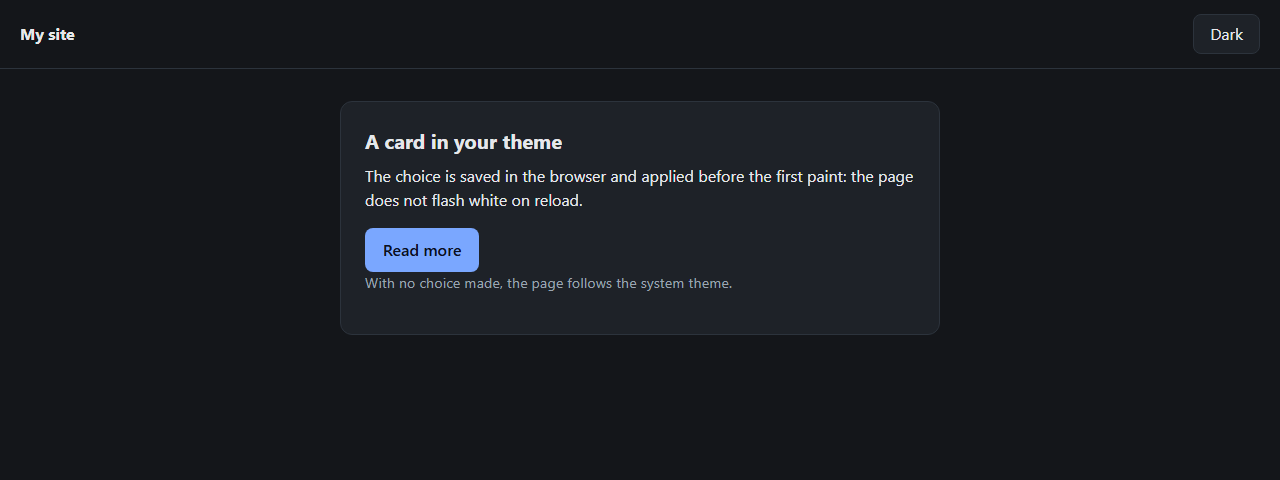
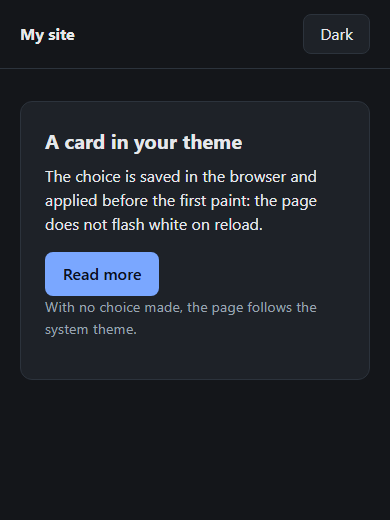
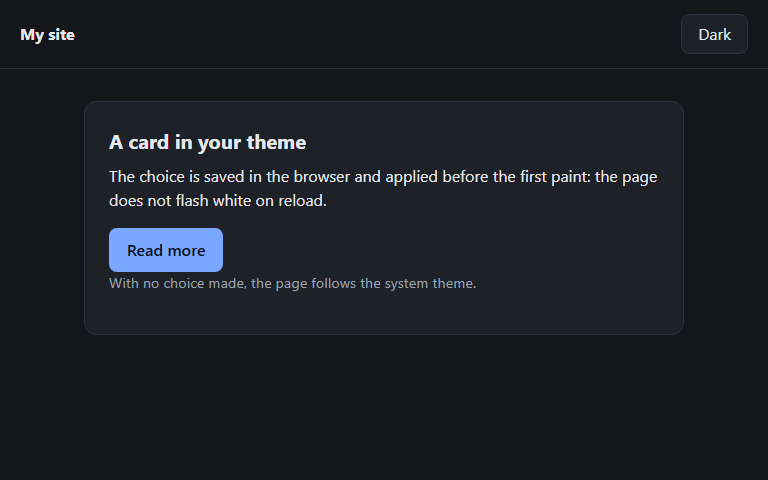
A dark theme button that does not flash white on reload: a short script in the head, light-dark() and color-scheme. The whole code, screenshots on a phone, a tablet and a desktop, and a check that there is no flash.
You turned on a dark theme, and on every reload the page flashes white for a split second before it goes dark. This is the most common mistake in a theme switcher, and it is fixed with one tiny script in the right place. Below is the whole recipe: code you can copy, an explanation of how it works, and a way to check the result yourself.
What you will get #
- By default the theme matches the system theme (light or dark) and works even with JavaScript turned off.
- A button switches the theme, and the choice is remembered in the browser.
- The saved choice is applied before the first paint: no white flash on reload.
Why the page flashes #
The browser paints the page while it reads the HTML. If the user's choice is applied by a script at the end of the page, or after loading, the browser has time to paint the light version and then repaints it. The choice must be known before the first pixel appears, so the script has to stand at the very start of the page, in thehead.Step 1. Declare that the site has both themes #
Put ameta line in the head and, right after it, a tiny script. It reads the saved choice and, if there is one, writes it to the data-theme attribute of the root element:
<meta name="color-scheme" content="light dark">
<script>
(function () {
  var saved = null;
  try { saved = localStorage.getItem('theme'); } catch (e) {}
  if (saved === 'light' || saved === 'dark') {
    document.documentElement.dataset.theme = saved;
  }
})();
</script>try block is there because in private mode or with storage blocked the browser throws an error, and without it the whole page would be left without a theme.Step 2. Describe the colours once #
The colours of each theme are a pair of values in thelight-dark() function: the first for the light theme, the second for the dark one. The color-scheme property picks the right one:
:root {
  color-scheme: light dark;
  --bg: light-dark(#ffffff, #14161a);
  --text: light-dark(#1b1f24, #e6e8eb);
  --card: light-dark(#f3f5f8, #1e2228);
  --line: light-dark(#d8dee6, #2c333c);
  --accent: light-dark(#1a56db, #7aa7ff);
}
:root[data-theme="light"] { color-scheme: light; }
:root[data-theme="dark"] { color-scheme: dark; }
body { background: var(--bg); color: var(--text); }data-theme, color-scheme: light dark works: the page takes the system theme without a line of JavaScript. When the script has written the user's choice, the last two lines force the right theme.Step 3. Add a button #
<button id="theme-toggle" type="button" aria-pressed="false"></button>(function () {
var root = document.documentElement;
var button = document.getElementById('theme-toggle');
var names = { dark: 'Dark', light: 'Light' };
function current() {
return root.dataset.theme ||
(matchMedia('(prefers-color-scheme: dark)').matches ? 'dark' : 'light');
}
function show() {
var now = current();
button.textContent = names[now];
button.setAttribute('aria-pressed', now === 'dark');
}
button.addEventListener('click', function () {
var next = current() === 'dark' ? 'light' : 'dark';
root.dataset.theme = next;
try { localStorage.setItem('theme', next); } catch (e) {}
show();
});
show();
})();Check it yourself #
We tested the recipe in a browser on a page with a slow script (two seconds) before the end, with the choice “dark” saved in storage and a light system theme. 0.8 seconds after the load started: with the script in thehead the page is already dark, with the script at the end it is white, and stays so until the page is read to the end. This is what a person sees at that moment: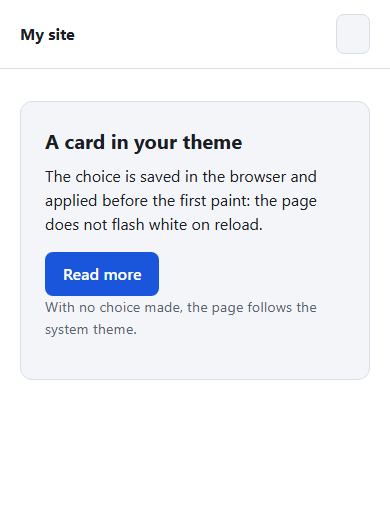

The rest is checked too: without JavaScript the page takes the system theme, after pressing the button and reloading the choice stays, and at 390, 768 and 1280 points there is no horizontal scroll.
You can repeat it like this:
- Open the page, press the button and choose the dark theme.
- Turn on network throttling in the developer tools and reload the page: the background stays dark from the first frame.
- Turn off JavaScript and clear the storage: the page follows the system theme again.
Common mistakes #
- The script at the end of the page. The flash comes back: the choice is known too late.
- No
color-schemeon:root. Without it,light-dark()does not know which value to take. - No
tryaroundlocalStorage. In private mode the page breaks in some browsers. - The theme in JavaScript only. Without the script the visitor has no dark theme even if the system has one turned on. The recipe solves this with
color-scheme. - Contrast not checked. Text and background should give at least 4.5 to 1, the WCAG AA accessibility rule. Check both themes, not one.



No one has commented yet. Be the first.